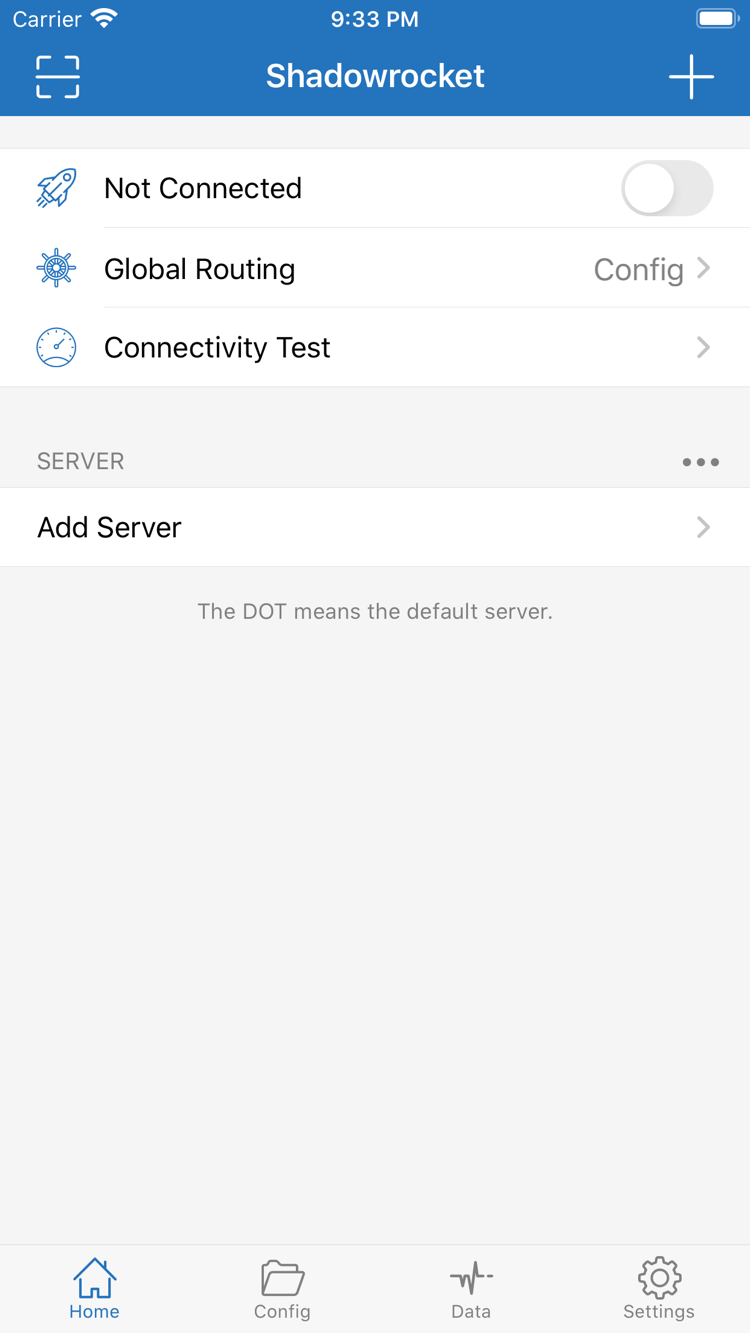
Official Shadowrocket Home screen screenshot

Genuine App Store app · One-time purchase

ShadowrocketSetup & User Guide

A paid client for iPhone / iPad that manages connections with rule-based routing. It’s a one-time purchase; start setup with your existing subscription or server details.

  • Global Routing
  • Config
  • PROXY / DIRECT
App Store
Available exclusively on the App Store, where you can also purchase and update it.
One-Time Purchase
The purchase covers the right to use the client; connection services are separate.
932747118
Check the app ID in the product link digit by digit when verifying the listing.
Config
Routes requests by matching configuration rules; distinct from Proxy and Direct.

iPhone / iPad Getting & Opening the App

Verify the app in the store before setting up system permissions and connection settings. Buying the client gives you the app; to connect through a proxy, you’ll also need your own existing subscription or server details. Check the App Store listing for system requirements.

iPhone

Buy and install Shadowrocket from its App Store product page. When you first connect, the system may ask to add a VPN configuration. Confirm that Shadowrocket initiated the request, then follow the system prompts to grant permission. Permission alone does not guarantee the server is available; check the selected entry and test the result.

If the App Store shows that the app has already been purchased, first check which Apple Account was used for the purchase. After changing devices, find the app in your purchased items. Imported subscriptions, custom configurations, and purchase records are separate, so check each one after restoring the app.

View iPhone access instructions

iPad

Use the Apple Account associated with the purchase to check your purchased items, then install the app on iPad. A purchase may be shared between iPhone and iPad; check the App Store listing for details. Don’t assume a connection set up on another device is already configured on this one.

The layout may differ on a wider screen, but you can still find settings by looking for interface labels such as Home, Config, and Settings. Check the server, active configuration, and Global Routing one by one. If you use iCloud sync, make sure the required content has synced to this device.

View iPad access instructions

Shadowrocket is also available from the same App Store on Mac and Apple TV. Check the App Store listing for system requirements and purchase compatibility.

View access steps →
On the App StoreDownload Shadowrocket

Shadowrocket Configuration Overview

Understand the connection strategy before changing individual settings. The prefixes on the left are visual markers for this index; they don’t indicate that a feature belongs to that configuration section. The code on the right is an example of rule syntax, not a field for a subscription or On Demand setting.

Rule-Based Routing and Global Routing

When Global Routing is set to Config, requests are matched against the active configuration’s rules in order. Typically, the first matching rule determines where a request goes. Use DOMAIN-SUFFIX to match domain suffixes, IP-CIDR to match IP ranges, and put FINAL at the end as a fallback. Proxy and Direct set different overall routing modes. After making changes, confirm that the intended configuration is active and test the target request. Editing a file without selecting it won’t change how connections are routed.

[Rule]
DOMAIN-SUFFIX,example.com,PROXY
IP-CIDR,192.168.0.0/16,DIRECT
FINAL,PROXY
  • Global Routing
  • Config
  • Proxy
  • Direct

When troubleshooting configuration, change one category of settings at a time: server details, Global Routing, or configuration rules. First confirm that the connection itself works, then check whether a domain is routed as expected. This helps distinguish an unreachable server from a rule that didn’t match or an issue with the destination website.

Browse Rules and Configuration Fields

Shadowrocket Quick Start in Three Steps

These steps assume you already have a subscription or server details. First establish a basic connection, then add custom rules and automatic connection conditions. This makes it easier to identify the cause if something goes wrong.

  1. 01 / Import

    Add Server: Check Your Existing Details

    Get subscription links from your service provider. For manual entry, check the Type, Host, Port, and authentication details one by one. After importing via QR code or clipboard, check the created entry rather than relying on the import confirmation. If the list is empty, make sure the link is complete and its contents match what the import option expects, then check the provider’s service status.

    A complete configuration and a server entry serve different purposes. A configuration may include rules and policies, while a server entry mainly describes how to connect to a server. Importing one doesn’t mean the other is ready. Note your current selections and keep the same server and configuration during testing so you can reproduce the results.

  2. 02 / Routing

    Global Routing: Choose a Routing Mode

    To route traffic by rules, select Config and confirm which configuration is active. Proxy and Direct select the corresponding overall routing modes. Don’t confuse these interface choices with the PROXY and DIRECT keywords in a configuration file: they operate at different levels and work together to determine how requests are handled.

    For initial testing, start with a simple configuration you understand. Rules are generally matched from top to bottom, with specific conditions before FINAL at the end. If a broad rule matches first, later specific rules may never apply. Save a copy before changing the order, then test a clearly defined destination.

  3. 03 / Verify

    Home: Connect and Check the Result

    Select a server, turn on the connection, and follow the system prompts to authorize the VPN configuration. Then run Connectivity Test and test actual access. A system connection status only indicates the state of the system connection process; continue testing server authentication, domain resolution, and access to your destination.

    If a connection fails, first check whether the current network is working, then verify the server details and subscription status, and finally review the rules and DNS settings. Note exactly which step failed instead of simply writing “can’t connect.” When contacting your provider, don’t include a full subscription link, password, or other credentials.

View the Full Guide →
Verify the App Store Listing

App Store Purchase & App Details

This is the official Shadowrocket website and guide. Shadowrocket is closed-source commercial software, available exclusively from the App Store. Verify the listing using its product details; don’t rely on search ranking, a similar name, or icon color alone.

  • Developer: Shadow Launch Technology Limited
  • App ID: 932747118
  • One-Time Purchase

Developer, Official Icon, and App ID

Open the product page and verify the developer is Shadow Launch Technology Limited. Compare its official app icon with the one in this site's header, then check that the URL contains id932747118. All three details should match; don't rely on the name Shadowrocket alone.

Search results may include apps with similar names, so verify the listing through the fixed product page. The icon can help identify the app, the app ID points to the specific product, and the developer name provides another way to confirm it. After checking these details, review the price, compatibility, and purchase information.

App Store Availability and Account Region

Whether the product appears depends on the current App Store region, content restrictions, and Apple Account status. If you can’t find it in search, try opening the product page directly, then check the App Store associated with your account and the content restrictions on your device. A missing search result doesn’t necessarily mean the app is no longer available.

The currency, purchase availability, and compatibility shown depend on your current App Store. Check the listing for system requirements. If you can’t install the app, review its compatibility details first, then determine whether the issue relates to system requirements or account status.

One-Time Purchase and Connection Services

Buying the client ≠ buying a service plan. The US storefront lists it at about $2.99 as a one-time purchase; the actual price depends on the App Store listing and may be displayed in local currency. The purchase covers the client, not a server or subscription for connecting.

This site doesn’t provide, sell, or recommend servers or subscriptions. Get the information you need to import from your service provider. The app purchase and your provider’s service term, data allowance, and server status are managed separately, so owning the app doesn’t guarantee an available connection.

Restore Purchases, Updates, and Configurations

When changing devices or reinstalling, use the Apple Account associated with the purchase and find Shadowrocket in your App Store purchases. Check the App Store listing for purchase compatibility between iPhone and iPad, other devices, and Family Sharing.

App updates are delivered through the App Store. Check purchase records, server details on the device, and configuration files separately. Before reinstalling, save any configurations you need; afterward, check the selected server and routing mode. If you use iCloud sync, verify the result on this device instead of assuming your data is complete because you’re using the same account.

Common Questions About Initial Setup

I bought the app. Why do I still need a subscription or server details?

The client reads configurations and establishes connections. Server details from a provider specify where to connect; these serve different purposes. First make sure you have all the required information, then follow the import steps. For definitions of these terms, see the glossary.

Connectivity Test gets a response. Why can’t I access the destination?

The test and actual access may use different destinations, protocols, or resolution paths. Keep the same server and check Global Routing, the active configuration, and the destination that failed. Don’t use a single test result to rule out all connection issues. For a detailed troubleshooting sequence, see Troubleshooting.

Rules don’t seem to take effect. What should I check first?

First, confirm that Global Routing is set to Config. Then check that the selected file contains your changes, followed by the rule order and actual request destination. After updating the rules, start a new test rather than relying on an existing connection. For syntax details, see Configuration Fields.

Shadowrocket Technical Notes

Find instructions by issue: if a subscription is empty, check its contents and status; for purchase issues, verify the App Store listing. Import instructions in these notes assume you already have your own subscription or server details.