Shadowrocket Setup Guide
Import your existing details, choose a connection mode, and verify a real request.
This guide is for iPhone and iPad and walks through first-time setup in five steps. First, get one existing server connection working. Then adjust rules and automatic connection settings so any issues are easier to diagnose.
- Home
- Add Server
- Config
- Settings
Add a Server and Import a Subscription
Done when: A selectable server entry appears in the SERVER group on Home.
After opening Shadowrocket, go to Home. If your details are a link that periodically updates a server list, treat it as a subscription. If you have a set of protocol, address, port, and authentication details, add a server manually. Both methods give the app the information it needs to connect—where to connect, which protocol to use, and how to authenticate. You don't need to import the same details both ways.
Subscription Link: Choose Subscribe
From Home, tap Add Server to open the add screen. Select Subscribe under Type, then enter the full subscription link in the URL field. Add a label to help identify the entry and save it. Return to Home and wait for the subscription to load. Subscription links are sensitive: check that the beginning, end, and query parameters are intact. Don't include explanatory text or line breaks added by a messaging app.
After importing, check that a server entry appears in the SERVER group, then select the one you want to use. A subscription name only organizes the list; it does not mean that a server within it is selected. If your provider updates the subscription, refresh the existing entry rather than adding the same link again and again. If an update fails, keep any existing working entries while you investigate.
Manual Entry: Check Fields for the Selected Type
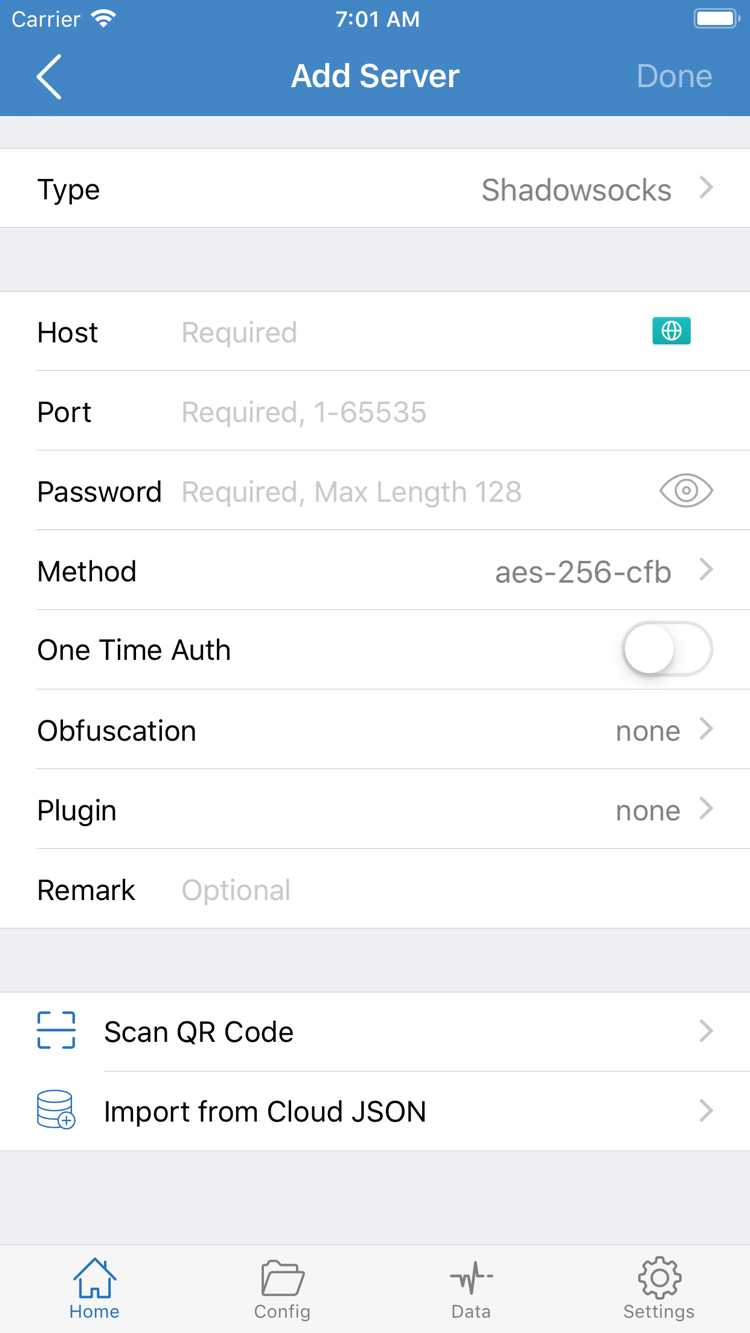
If you have details for a single server, choose the correct Type in Add Server, then enter the Host, Port, and authentication details required by that protocol. For Shadowsocks, Password and Method must match the server settings. Fields differ by protocol, so check each against your original details. Host is usually a domain name or IP address—not a full webpage URL.
Before saving, check that the port is complete, the password has no extra spaces, and the protocol is correct. An optional field on the screen doesn't mean every server needs it. Don't guess TLS or transport settings based on their names. If details are missing, ask your service provider for them rather than trying random options.
Know the Difference Between QR Codes and Configuration Files
If you have a QR code, use Scan QR Code to read the connection details, then check the parsed Type and Host. Import from Cloud JSON is for compatible data formats, not a universal way to import any webpage or subscription. Confirm the data type before importing, and check the resulting entry afterward.
Server subscriptions and configuration files in Config serve different purposes: subscriptions manage server entries, while configuration files manage settings such as rules. When you see Config or Subscribe, consider what kind of data you're working with; don't choose an import route based on the button label alone. First finish importing the server, then move on to Global Routing. See the glossary for more definitions.
Choose a Global Routing Mode
Done when: You can tell whether a request is handled by rules, sent through a proxy, or connected directly.
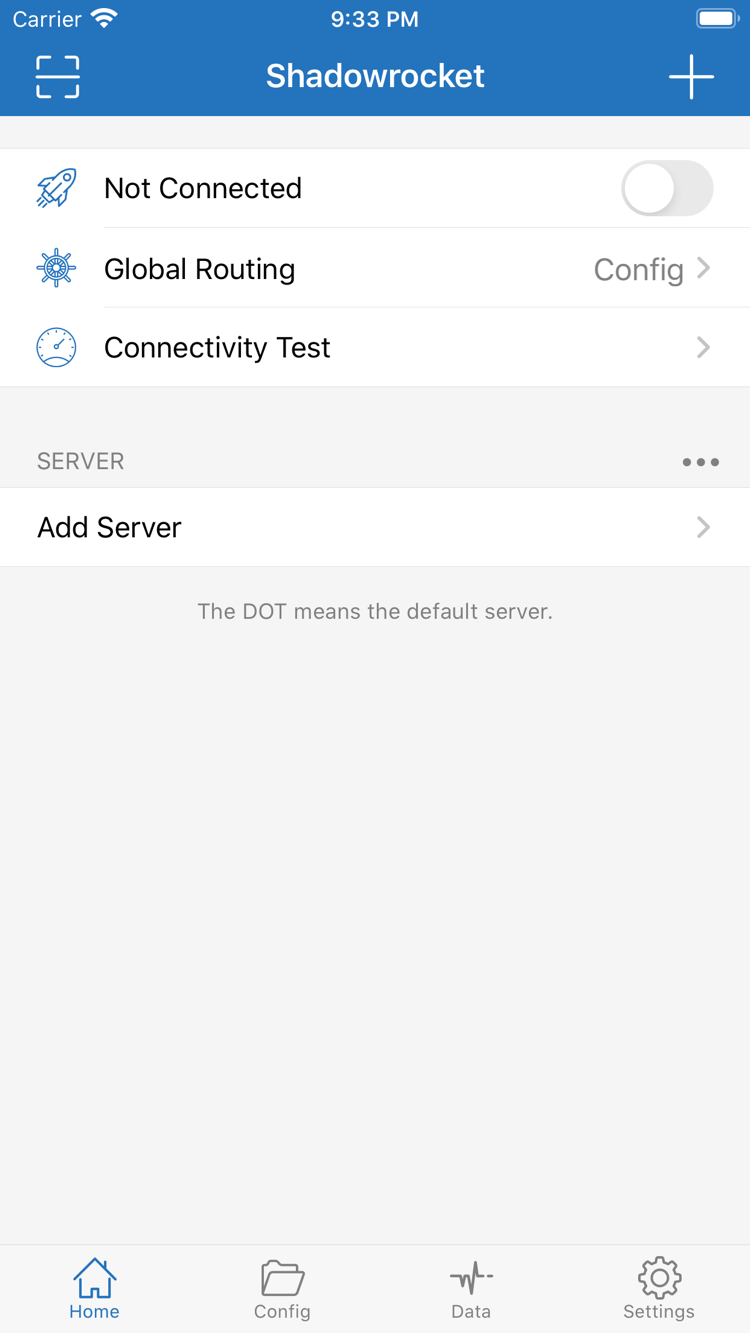
After saving a server entry, return to Home and tap Global Routing to see the current mode. This controls how requests are handled, not which server protocol is used. The three modes are Config, Proxy, and Direct. Note the current selection before you start so you can explain any differences when troubleshooting.
Config: Route Traffic Using a Configuration File
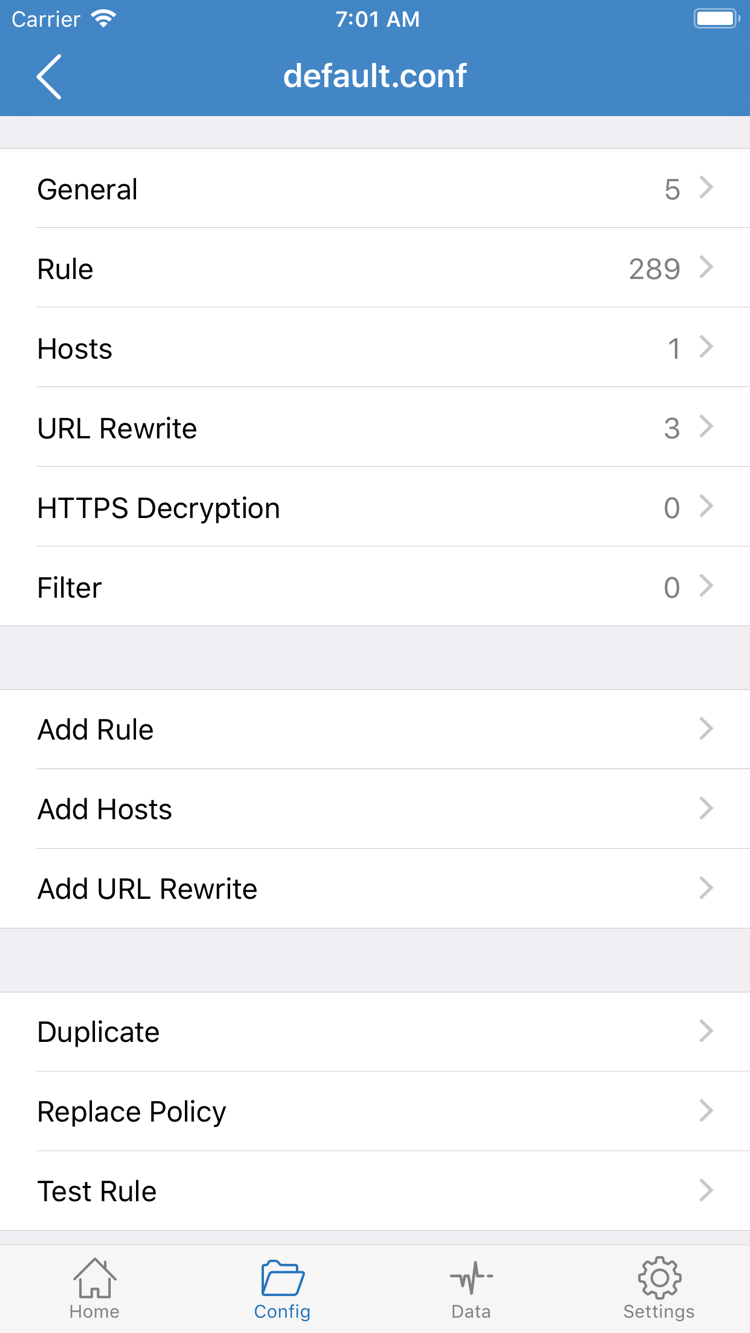
In Config mode, Shadowrocket handles requests according to the active configuration file. Open Config to check which file is in use and confirm its Rule and policies are what you expect. A file appearing in the list doesn't necessarily mean it's active; check its selected or in-use status. When getting started, use a configuration you already have and understand. Keep a copy before editing.
Rules can send specific domains through PROXY, route local network ranges through DIRECT, and use FINAL to determine where all other requests go. The Rule snippet below illustrates matching order; it isn't server information and shouldn't replace an entire configuration. Rules can only be matched when the relevant request is handled by the app.
[Rule]
DOMAIN-SUFFIX,example.com,PROXY
IP-CIDR,192.168.0.0/16,DIRECT
FINAL,PROXY
This snippet sends example.com and its subdomains through PROXY, routes the specified private network range through DIRECT, and sends all other requests to FINAL. Rules are generally evaluated from top to bottom, so put specific conditions before broader ones. Keep your existing rules while verifying the connection; there's no need to change General, Hosts, or URL Rewrite during initial setup.
Proxy and Direct: Modes for a Clear Comparison
Proxy handles app traffic in proxy mode. When your existing server details are correct, this can help rule out configuration-based routing as the cause of an issue—but it doesn't guarantee that every service will allow access from that endpoint. Direct connects without a proxy, so it can't verify whether a proxy server works. Even with the connection switch on, Direct may use a different route than Proxy.
If you need rule-based routing for everyday use, switch back to Config after basic verification and check the active file again. These modes aren't levels of connection strength, and they don't change your account permissions with your service provider. For more on rule types, FINAL order, and configuration sections, see Configuration Field Reference. This guide covers only the mode selection needed to get started.
Connect and Authorize the VPN
Done when: System authorization is complete and the app's connection status stays on.
Return to Home and confirm that the server you want is selected in SERVER. Check that Global Routing is still set to the mode you chose in the previous step. Don't switch modes while repeatedly toggling the connection. Fix the server and mode first so you can tell which settings produced the result.
Tap the connection switch at the top of Home. Before connecting, the status may show Not Connected. The first time you connect, the system asks to let Shadowrocket add a VPN configuration. Review the app name and explanation in the prompt. If this is the action you just initiated, allow it and complete any passcode or biometric verification requested by your device.
VPN configuration authorization lets the system allow the app to handle the relevant network traffic. It doesn't purchase a service plan or mean the server has authenticated successfully. After allowing it, return to Shadowrocket and check whether the status changes and the switch stays on. If you dismissed the prompt earlier, initiate a new connection and follow the system's prompts.
If the switch turns off shortly after you turn it on, first check whether authorization is complete and whether another VPN configuration is already handling the connection. Temporarily stop conflicting connections and try again; don't reset all system settings. On a work- or school-managed device, restrictions may depend on its management policy. Follow the options allowed on the device.
A switch that stays on only confirms that the device has established the local connection process; it doesn't mean every remote website will be reachable. Continue to verification rather than enabling On Demand right away. Once manual connect, disconnect, and reconnect behave as expected, set up automatic connection if needed.
Verify the Connection and Rules
Done when: The test result, actual access, and request route make sense together.
After connecting, run Connectivity Test from Home and wait for the result for the selected entry. A successful test shows reachability under those test conditions; it doesn't prove that your account permissions, every destination, and every rule are working. Interpret a timeout in light of the test method and network environment. Don't delete a configuration based on one result.
Next, open the app you want to test and make a new request, such as refreshing a webpage you know is available. Compare results using the same destination and network where possible; don't mistake a cached page for a successful connection. If the destination had an existing long-lived connection, reopen the app after changing modes so a new request uses the current settings.
To check rules, review available connection records in Data and use the domain, destination address, and policy details to determine where a request went. Check whether the request passed through the app and whether it used PROXY, DIRECT, or REJECT—not just whether total traffic increased. Available record fields depend on the current interface. If a request isn't listed, consider caching, existing connections, and record settings.
If Proxy works but Config doesn't, check the active configuration file, rule order, and matched policy. If both modes fail, check the server details and service status. If only one destination fails, compare it with another known-working destination; a single site's response doesn't mean the entire connection is down.
After verification, restore Config or another confirmed mode that meets your needs, then repeat the test request. Finally, disconnect and reconnect manually to confirm the process is repeatable. The setup flow is now complete: add details, choose a mode, connect, and verify. Troubleshoot any remaining issues by symptom in the next section.
Settings and Common Issues
Check the relevant step for each symptom instead of repeating the entire setup.
Nothing After Import: Check Whether the Details Loaded
Return to the subscription entry and check that the link is complete and points to subscription content—not your provider's account webpage. Also check that your existing service is active and that the current network can load the link. Get the link from your service provider. For issues involving server-side parsing or account permissions, check the original details. Don't post links containing credentials in public forums.
If a manually added entry doesn't appear under SERVER, return to Add Server and check whether it was saved and whether required fields passed validation. A subscription load failure and a server connection failure are different stages: the former means no entries have been retrieved, while the latter means an existing entry can't pass a test or handle a real request. Troubleshoot them in that order.
Test Timed Out: Check the Test Method and Actual Access Separately
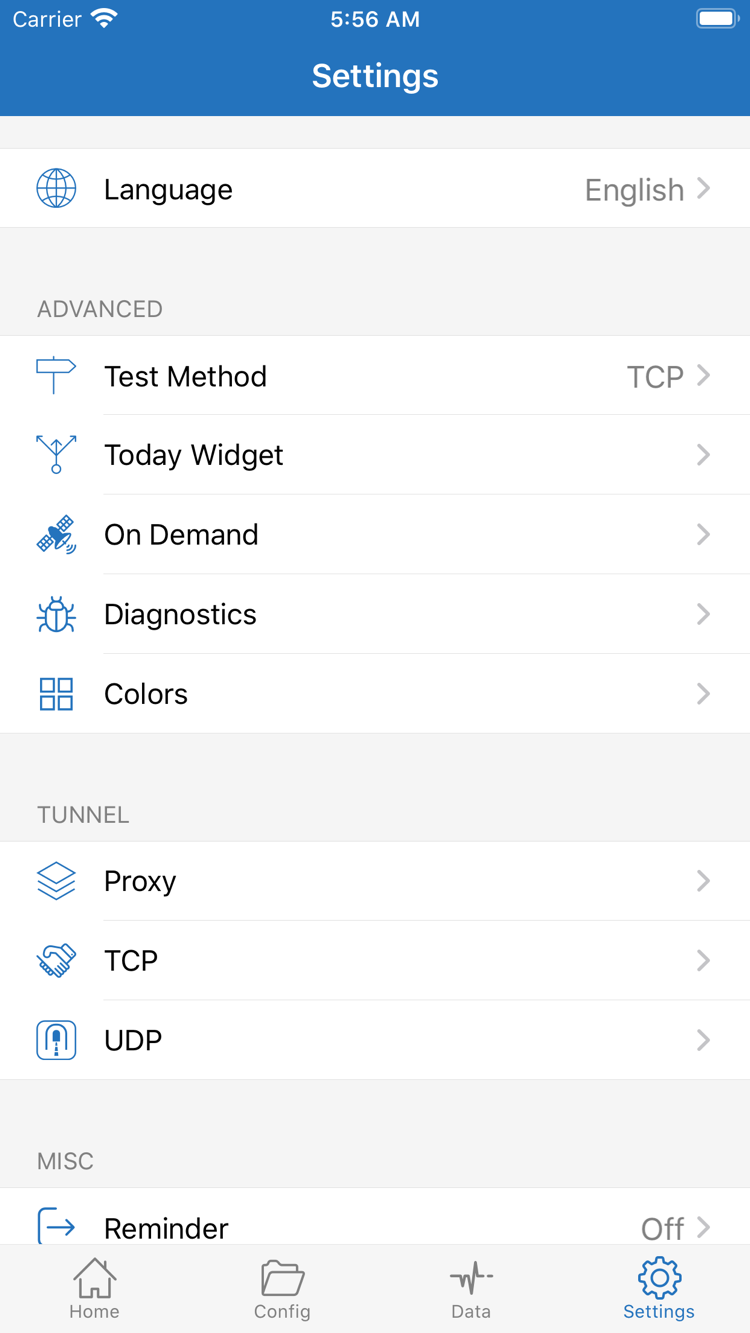
In Settings, check Test Method to see how the current test works. Different methods measure different things, so their results aren't directly comparable. Keep one method selected and repeat the test for the same entry. If actual access works but a particular test keeps failing, check its target and whether the network meets that method's requirements.
If real requests also fail, check Type, Host, Port, Password, or the authentication fields required by the protocol, along with the TLS and transport settings specified by your provider. Comparing Wi-Fi and cellular can help identify an issue with the current network. Keep the server and Global Routing mode unchanged during the comparison.
Some Apps Fail: Check the Mode and Matched Rules
First, make sure Direct isn't selected by mistake, then check which file is active in Config. A specific domain matched by REJECT, a broad rule taking precedence, or a FINAL policy that sends traffic somewhere unexpected can cause isolated failures. Don't change all DNS and protocol settings just because access failed; check the connection records first to see where the failed request went.
If you need to edit the configuration, save a copy first, then change only the rule related to the issue and test with a new request. For details on domain resolution, IP rules, and protocol settings, see Configuration Field Reference. To find steps for a specific symptom, visit Frequently Asked Questions.
Automatic Connection Issues: Check On Demand Last
On Demand in Settings starts a connection when specified conditions are met; it doesn't fix server availability. If you haven't confirmed the basic connection, verify it with the manual switch first. If the system reconnects after you disconnect, check the existing On Demand settings and your device's VPN management status before making changes. Afterward, test opening the app, switching networks, and disconnecting manually.
For further troubleshooting, check Diagnostics. Before sharing diagnostic data, look for server addresses, authentication details, subscription links, and connection records, and remove anything sensitive. Keep the mode, network type, and error details from when the issue occurred. These details are usually more helpful than simply saying the connection doesn't work.
First-Time Setup Checklist
- An entry appears in SERVER, and the selected server matches your details.
- You can distinguish Config, Proxy, and Direct and confirm which mode is selected.
- System VPN authorization is complete, and the connection switch stays on.
- You've run Connectivity Test and verified the connection and policy with a real request.
- You kept a copy of the configuration before editing. Subscription links and authentication details are for your use only.
Keep these verified settings in place before adding rules or automatic connection conditions one at a time. If an interface term is unclear, check the glossary—there's no need to rebuild your entire configuration just to understand one option.